ONE International Logistics System User Guide
Introduction
Purpose
This report aims to provide detailed usage instructions for users of the "ONE International Logistics" project. This project is designed to provide efficient and convenient services through advanced technical means to meet users' diverse needs. This user guide will detail the system's functions, operational procedures, and precautions to help users quickly get started and fully utilize the system's various features.
Project Background
- Project Name::ONE International Logistics
- Developer:Shenzhen Bay Cross-border E-commerce City Service Center Co., Ltd.
System Usage Instructions
Login
Enter the system login interface.
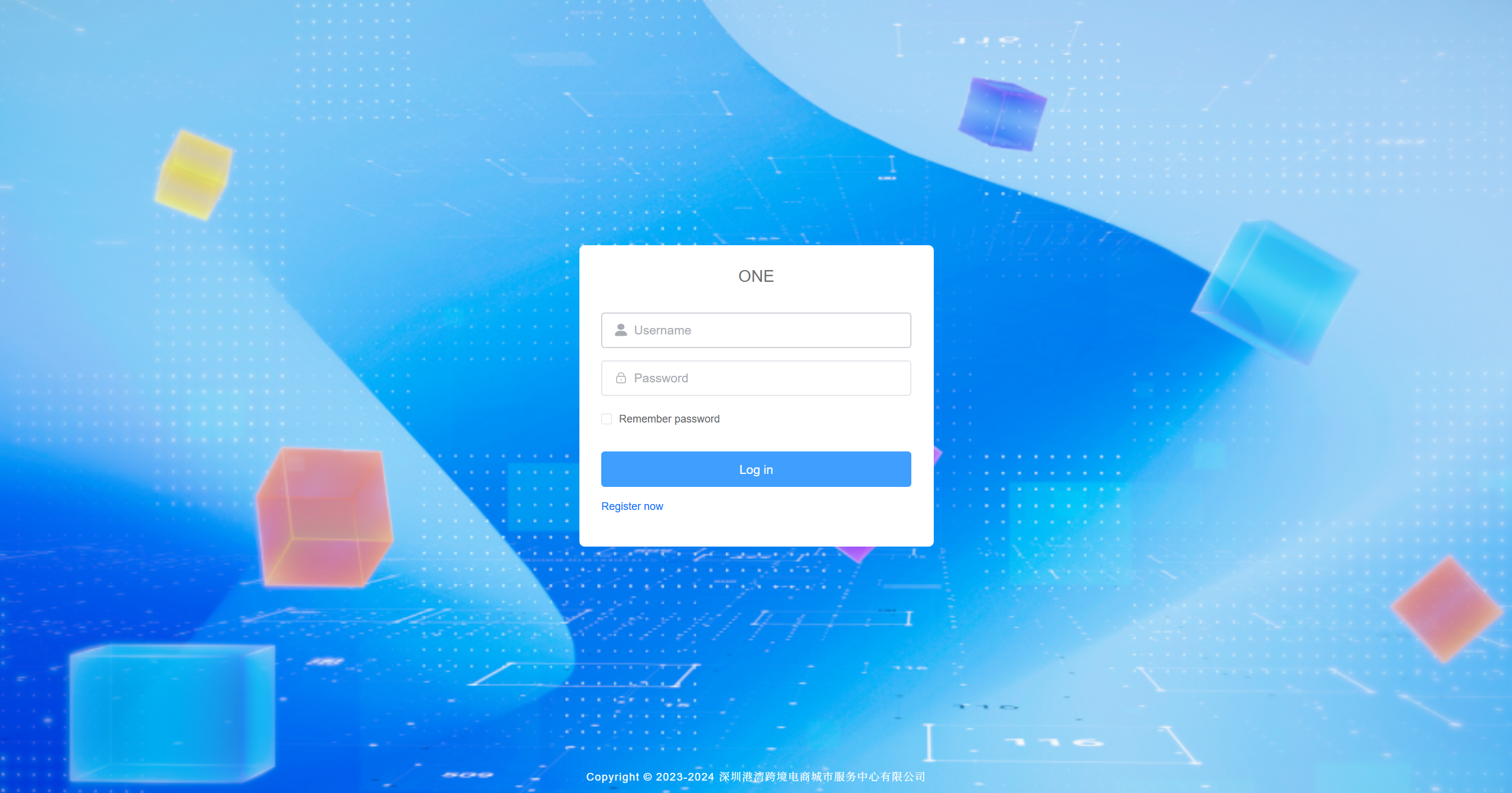
Input username and password.
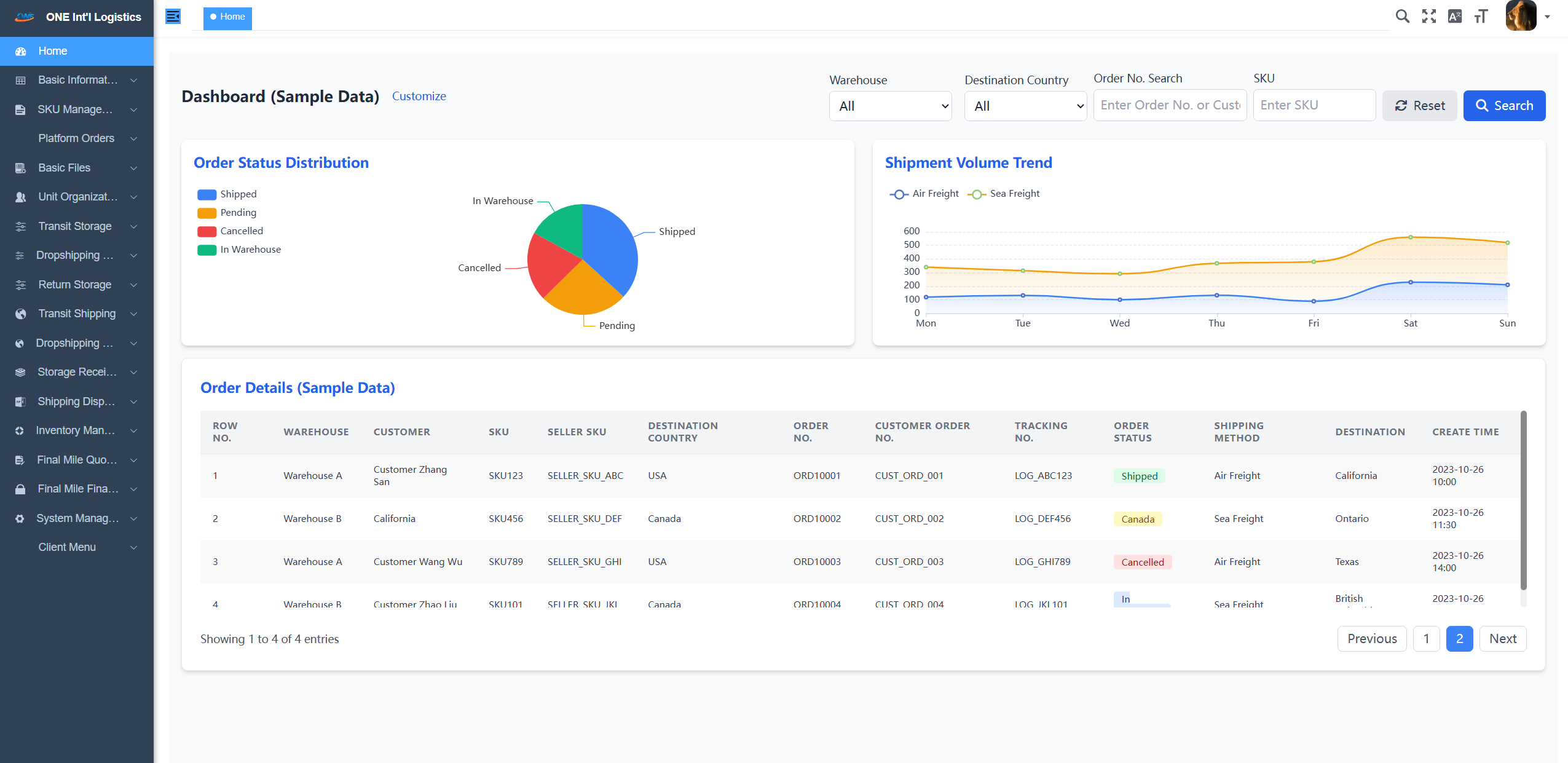
Click the "Login" button to enter the system homepage.
Register
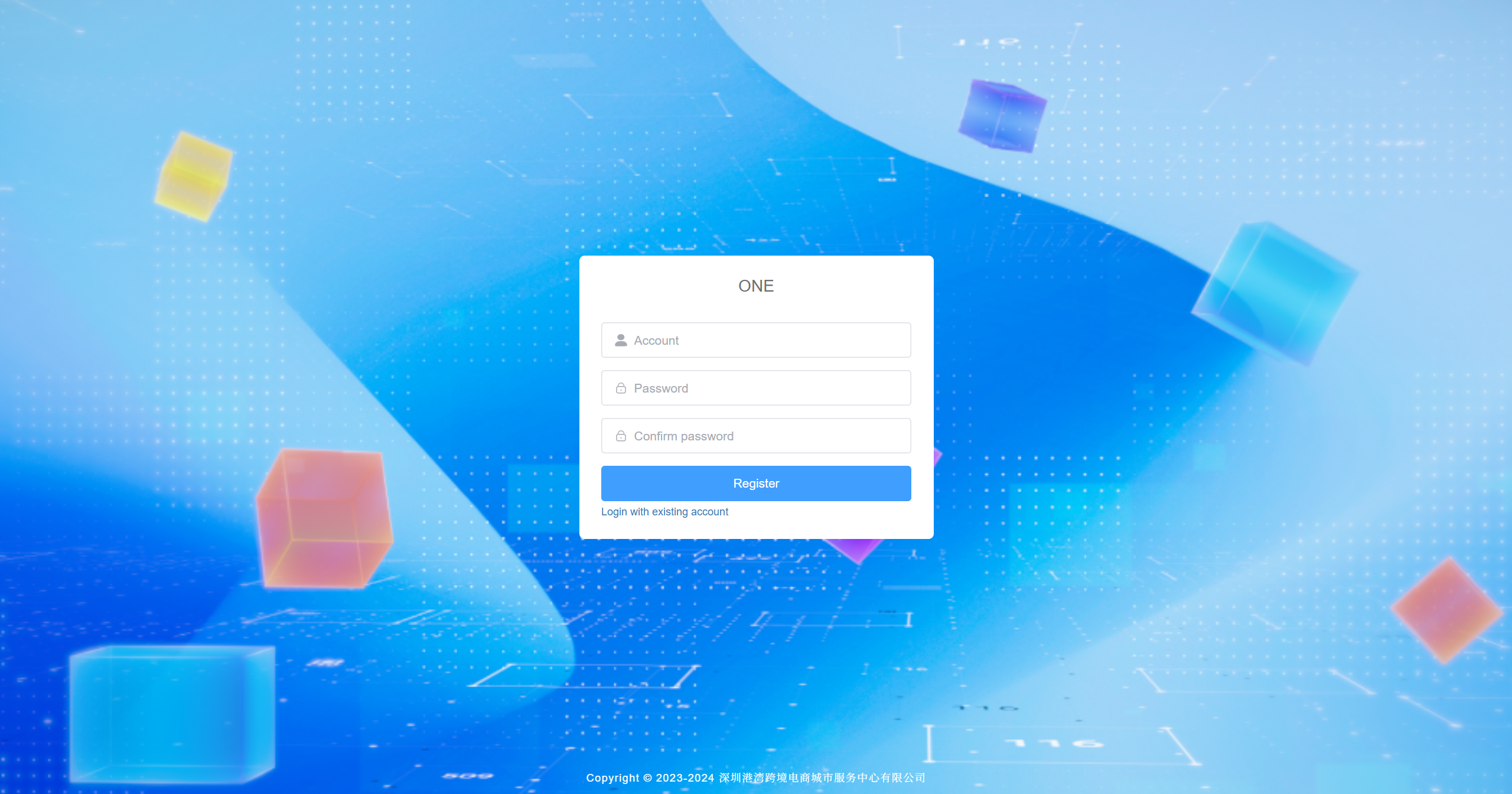
- Click the "Register Now" button on the login page to enter the registration page, enter your account and password, and click the "Register" button to create an account
SKU Management
Pending Review SKUs
Customer Added Pending Review SKUs
- The system receives SKU information submitted by customers and automatically marks it as "Pending Review" status.
- Adding a new SKU will synchronously create a seller SKU, where the basic data is consistent with the SKU data.
- Single product selection defaults to quantity 1, FNSKU uses SKU.
Administrator Approval of SKUs
- Administrators click the "Approve" button, and the system updates the SKU status to "Approved" and enters the official SKU and customer self-use SKU list.
Administrator Rejection Operation
- The system updates the SKU status to "Rejected".
Customer Modification of Pending Review SKUs
- Customers can modify rejected SKUs and fill in processing descriptions to resubmit for re-review.
Note: -For the same consignor, the consignor SKU of newly added pending review SKUs cannot be duplicated. -New fields: Product Nature (Single Product / Composite Product).
- Adding a new SKU will synchronously create a seller SKU.
Official SKUs (Management)
Official SKUs are SKUs that have been approved by administrators and are ready for formal use in business processes.
Enable/Disable Operations
- Default Enabled:Newly added SKUs are enabled by default, displayed in the official SKU table, and available for business processes.
- Disable Operation:Administrators can select SKUs and click the "Disable" button. The system updates their status to "Disabled" and removes them from the official SKU table. This may trigger operations such as delisting sales and inventory clearing.
- Disabled SKU Table:Disabled SKUs will be added to the disabled SKU table for subsequent management and analysis.
Public/Private Operations
- Default Private:Newly added SKUs are private by default, only displayed in the customer's own private SKU table.
- Public Operation:Administrators can click the "Public" button to make the SKU available to all customers or a broader audience. The system moves it from the private SKU table to the public SKU table.
Functional Operations
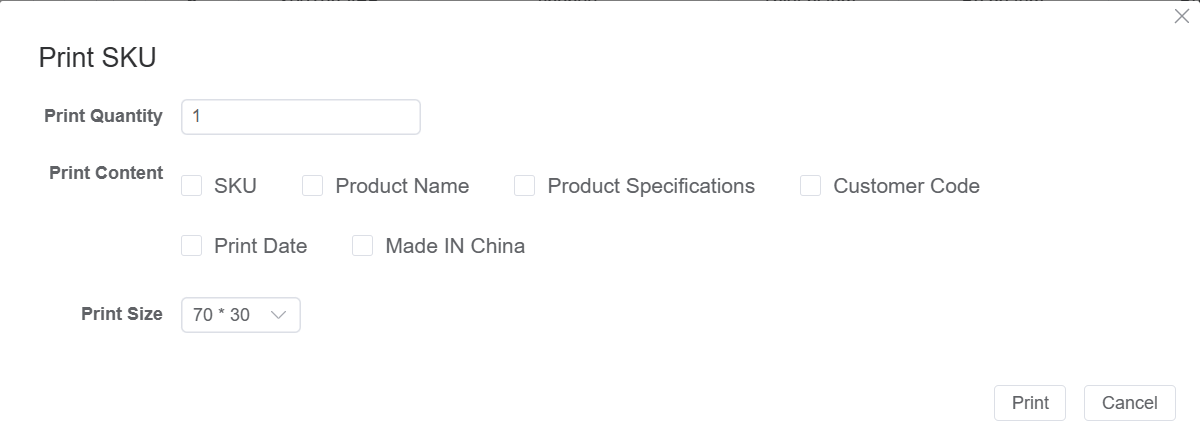
- Print Labels:Select one data entry, choose print content and quantity, adjust size, and generate barcode files.
- Push to MK Lingxing:Push selected SKUs to MK.
- Push to BMC Lingxing:Push selected SKUs to BMC.
- Push to MYK Lingxing::Push selected SKUs to MYK.
- Sync Weight and Dimensions::Support synchronization of weight and dimension data from MK, BMC, and MYK.
Note:Push and sync operations require filling the "Declared Value" field first. The sync function is only applicable to agency warehouses, and data is generally maintained in the corresponding systems.
Private SKUs (Customer)
- Display SKUs added by customers and approved through review.
- Support public operations, customers can make SKUs public to the public SKU table.
- Disabled SKUs will enter the disabled SKU table.
Public SKUs
- Contains all publicly available SKU information for use by other customers. Data is displayed based on account-bound consignors. Different customers under the same consignor can view the data. Support setting as "Private" to move back to the customer's private table.
- Data is displayed based on account-bound consignors. Different customers under the same consignor can view the data.
- Support setting as "Private" to move back to the customer's private table.
Associated Seller SKUs
- Can view how this SKU is used by other sellers.
- Other sellers can introduce this public SKU in "Seller SKUs".
SKU Categories (Management)
- Used for product classification management to optimize SKU presentation.
- SKU categories can be selected when adding "Pending Review SKUs".
Disabled SKUs
- Disabled SKUs will enter the disabled SKU table.
- Enable Operation:Administrators can re-enable SKUs, update status to "Enabled", and resume usage.
Seller SKUs
- Created synchronously when adding SKUs. Product selection defaults to quantity 1. Basic information and FNSKU default to be consistent with SKU.
- Contains seller SKU information for all customers under the same consignor.
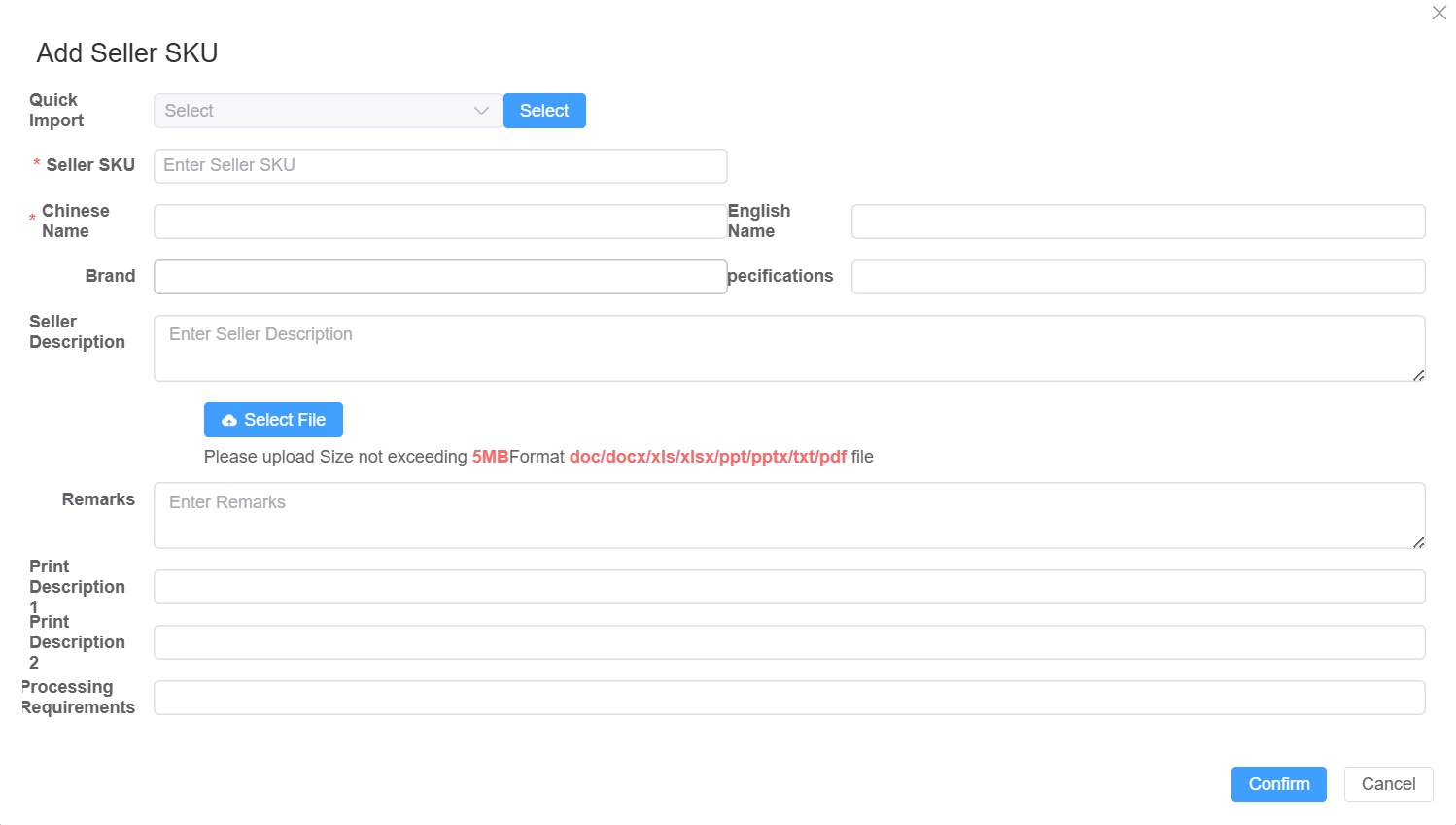
Add Operation
- Manually fill in seller SKU information.
- Or use "Quick Import" to import private or public SKUs.
Edit Operation
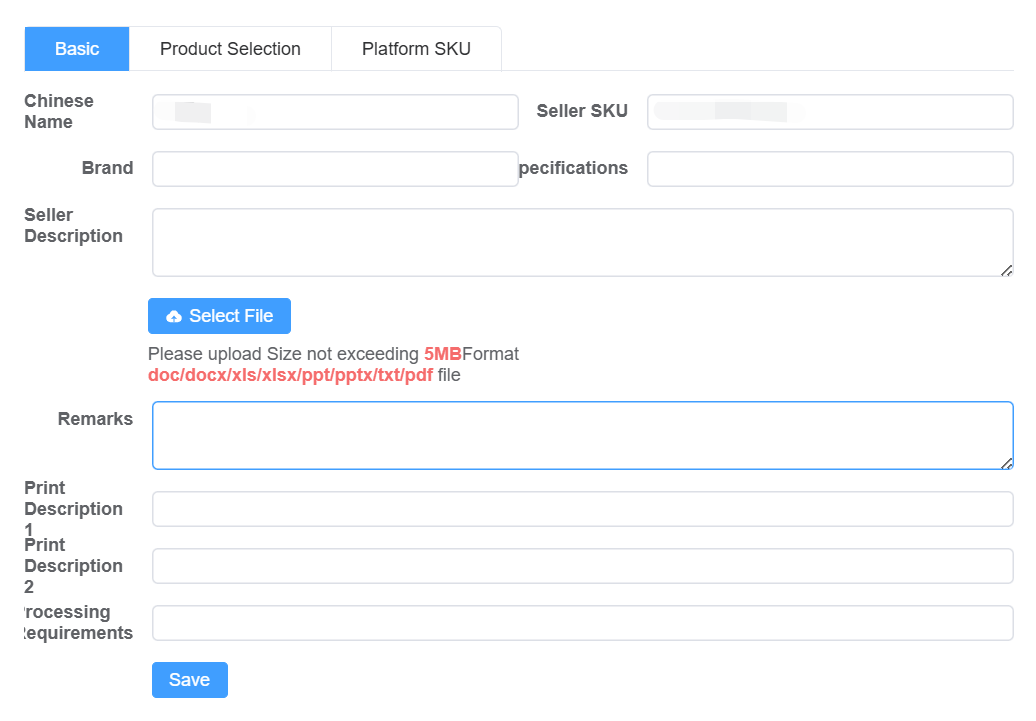
- Double-click the table row to open the right drawer for editing.
- After modifying basic information, click "Save".
Product Selection Operation
- Click the "Product Selection" button to choose single or composite products.
- Fill in product quantity and press Enter to save.

Platform Integration
- Support adding integrated platforms to manage FNSKU, UPC, ASIN, and other information.
Note:If seller SKUs have unfinished orders, product selection and platform SKUs (FNSKU) cannot be modified or deleted.
SKU Maintenance (Customer)
- Contains SKU maintenance information for all customers under the same consignor.
- After customer confirmation, data is used for subsequent business calculations.
New Product Maintenance (Management)
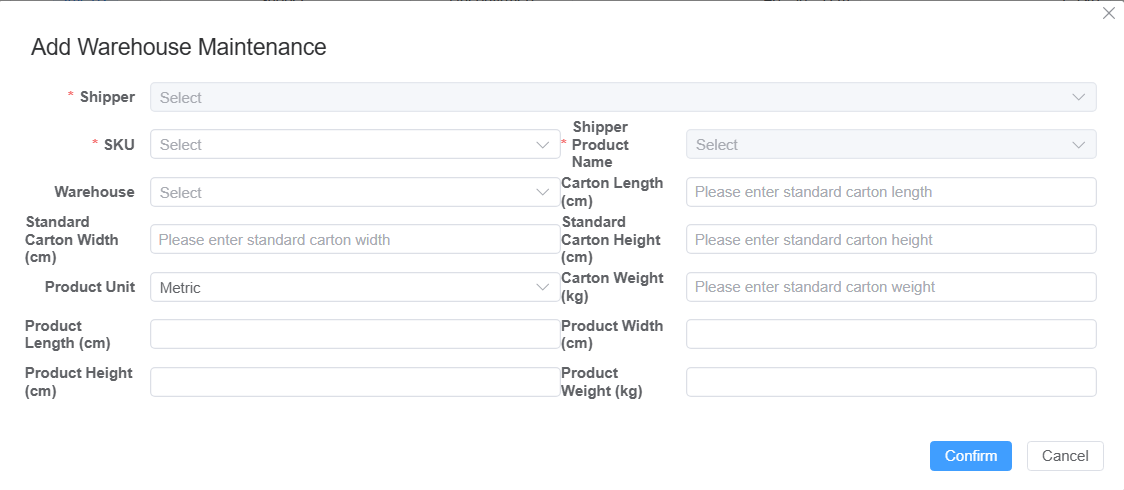
- Created by the following methods:
- Automatically created when administrators approve "Pending Review SKUs".
- Synchronously created after consignment/return inbound orders are approved.
- The same product can only be maintained once under the same warehouse and consignor.
Basic Archives (Management) / Account Management (User)
Customer Profiles
- Record customer basic information, transaction records, preferences, credit, etc.
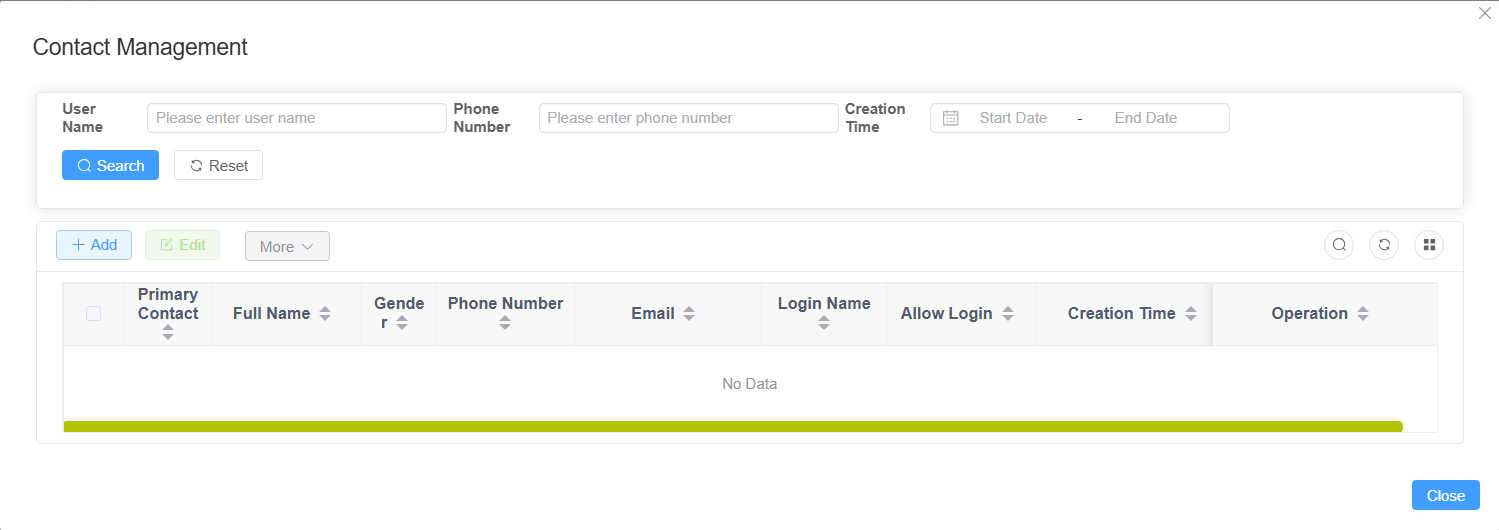
- Support contact management, adding users and binding customers.

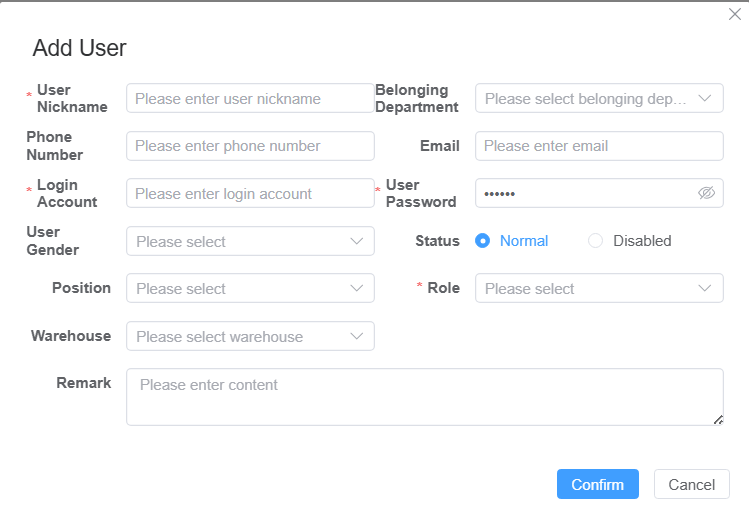
Add User
- Name:User nickname.
- Login Account:Used for system login.
- Password: Default 123456.
- Role:Selected from role management.
- Warehouse:Assign accessible warehouses.
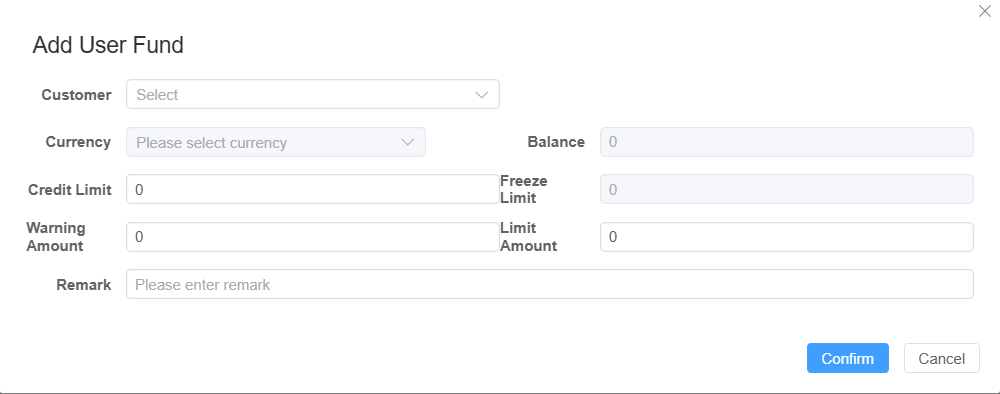
Customer Funds (Management) / User Funds (User)
- Record customer account balance, payments/receipts, transaction details, etc.
- After administrator approval of "Recharge Review", the amount is credited to user funds.
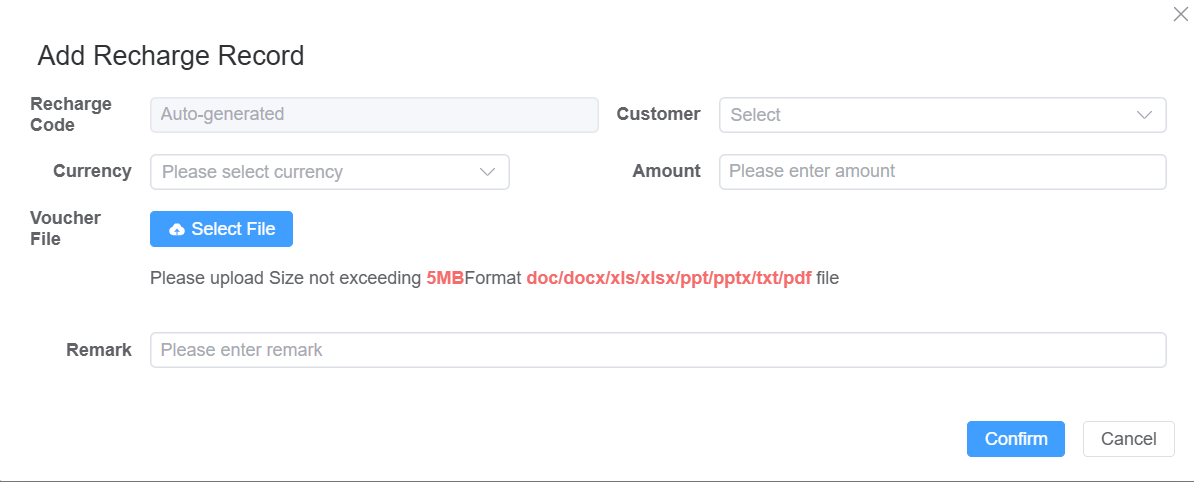
Recharge Review (Management) / Recharge Records (User)
- Customers submit recharge records.
- After administrator approval, funds are credited.
Fund Transactions (User)
- Automatically generated:
- Recharge records.
- Last-mile Finance > Bill List > Reconciliation Confirmation.
Supplier Profiles
- Similar to customer profiles, bound as suppliers.
Warehouse Information
- Support adding warehouses and selecting parent warehouses for group management.
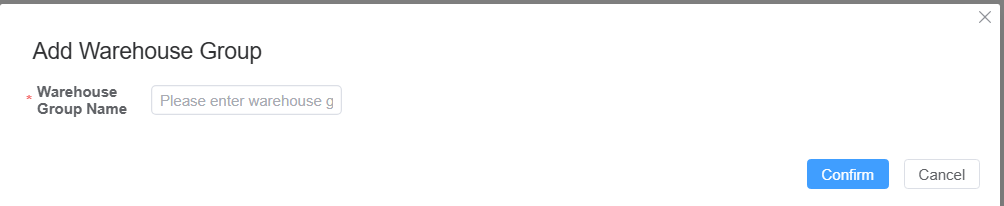
Complete Warehouse Information
- Refine management based on warehouse areas and shelves.
- Can add areas and shelves.
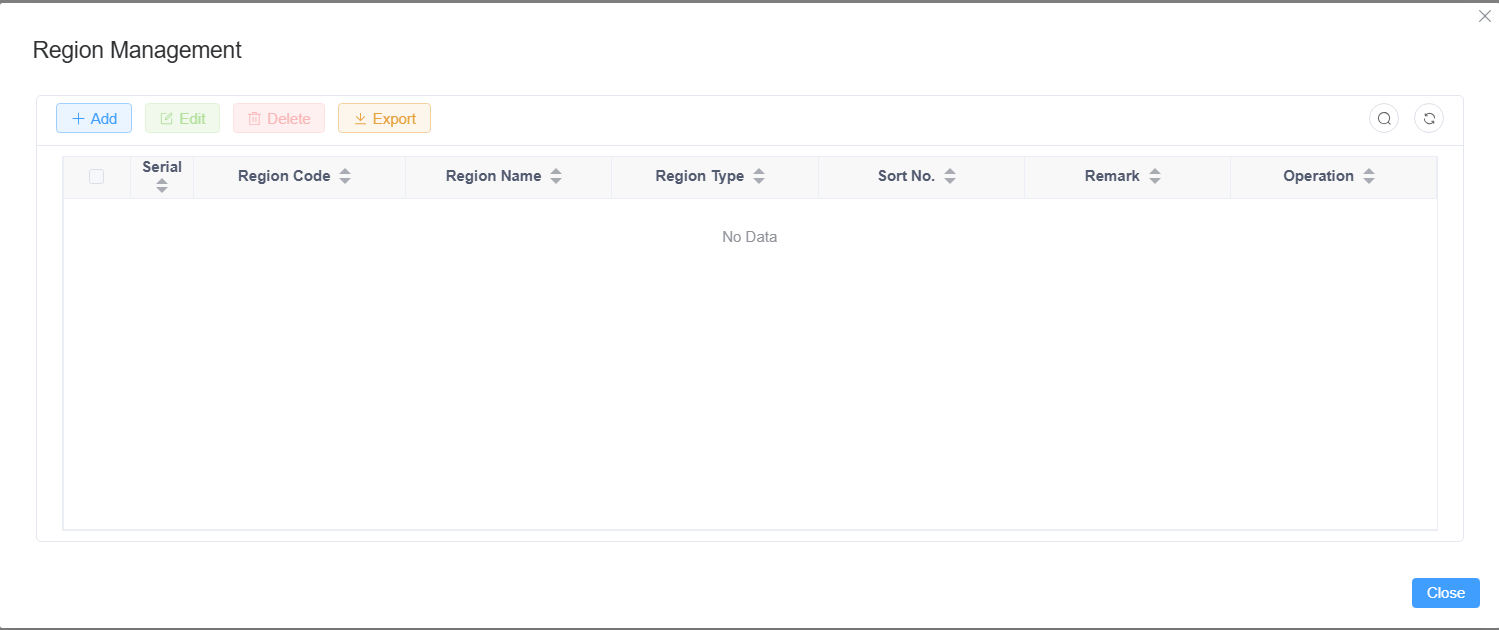
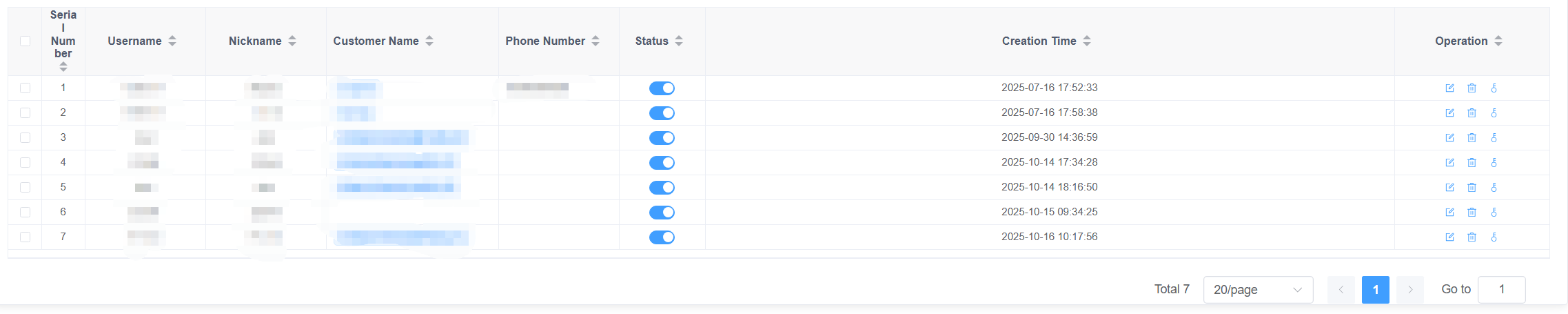
Customer Accounts
- Display all account information from customer profiles.
- Support modifying account information.
Organizational Units
User Management
- Add users and assign roles and permissions.
- Support department affiliation, warehouse, and role settings.
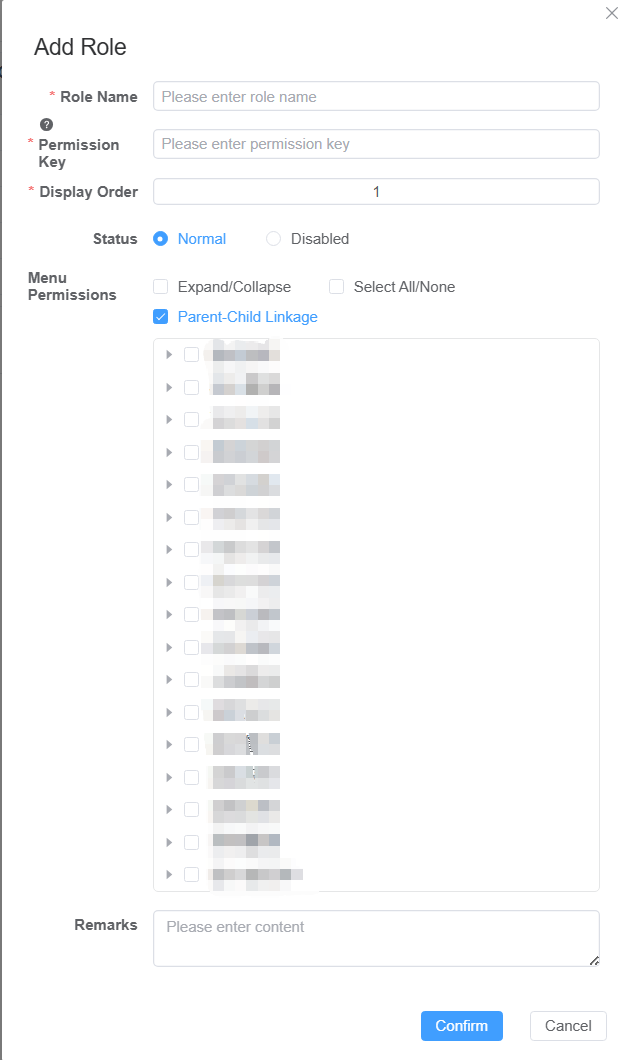
Role Management
- Assign functional permissions such as viewing customer information, editing profiles, creating orders, etc.
- Permission characters containing customer are considered customer roles.
Department Management
- Organizational structure management, supporting multi-level department settings.
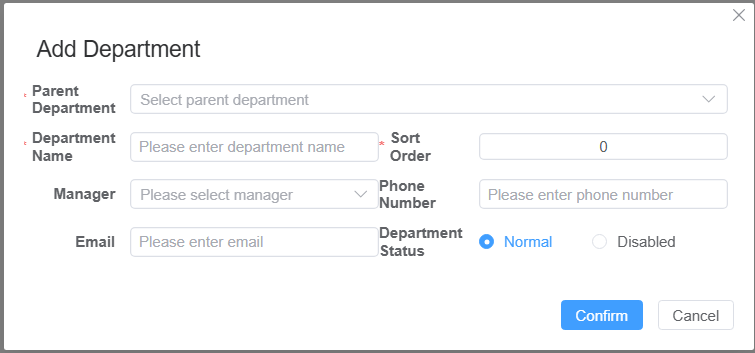
Workgroup Management
- Support workgroup creation and management.
General function of inventory in and out
Push and Print
- Push to MK/BMC/MYK Lingxing:Push inbound orders to corresponding systems.
- Print Labels:: Fill in contact email, generate labels with quantity equal to total order boxes.

Note:Outbound has no print function.
Transit Inbound
All Orders
- Uniformly display transit inbound orders in various states.
- Support exporting all or selected data.
Pending Review
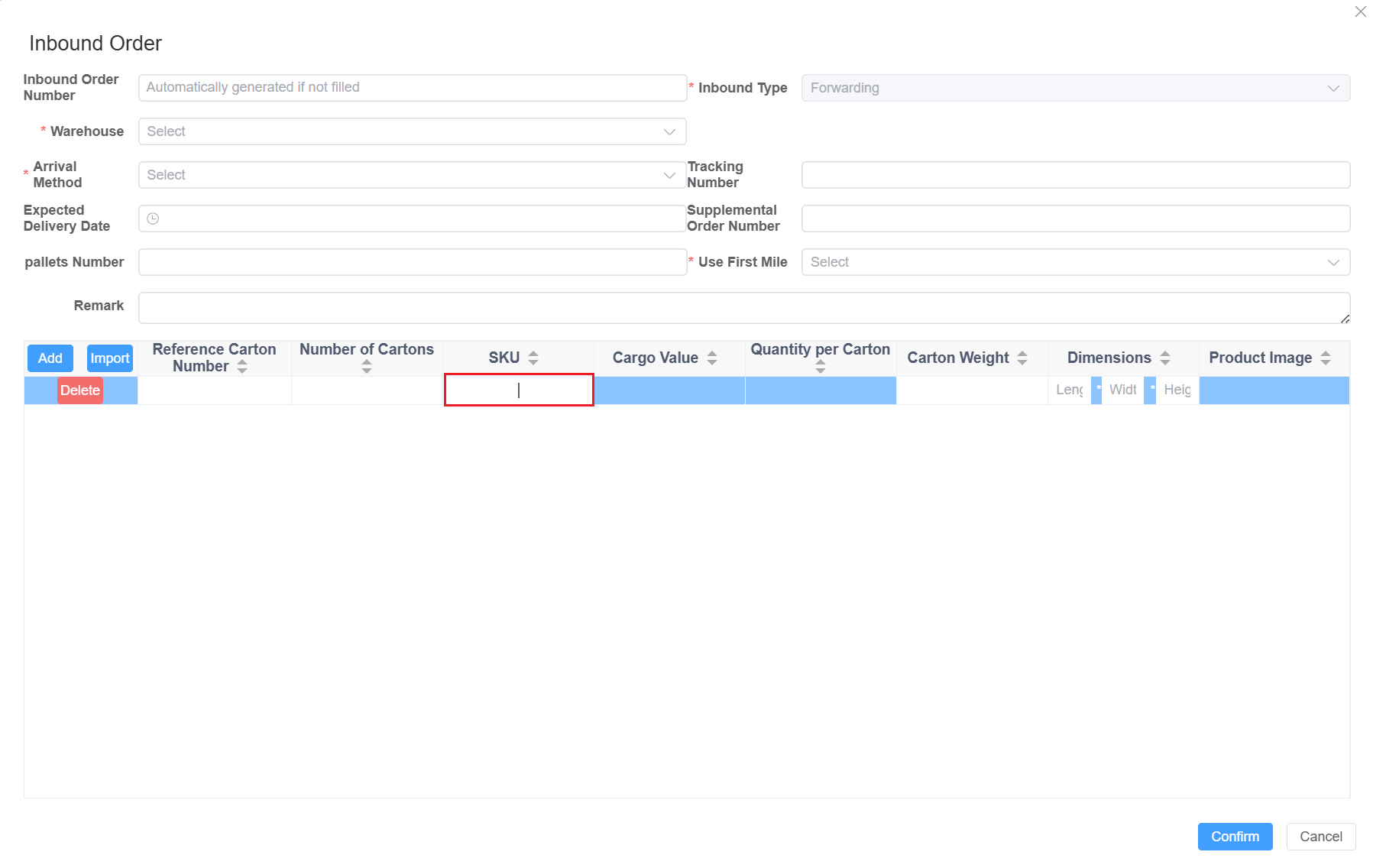
- Users fill in basic information and add SKUs (support multi-selection combination or single selection).
- Support importing templates to batch load SKUs.
Management Operations
- Approval Passed:Status updated to "Pending Inbound".
- Rejected:Status updated to "Rejected", can be viewed in the "Rejected" menu.
Rejected
- Users can perform "Re-review" operations to resubmit.
Pending Inbound
- After administrator approval, orders enter "Pending Inbound".
- Generate receiving tasks in "Inbound Receiving > Arrival Notification".
In transit
- Receive in batches, status updated to "In transit".。
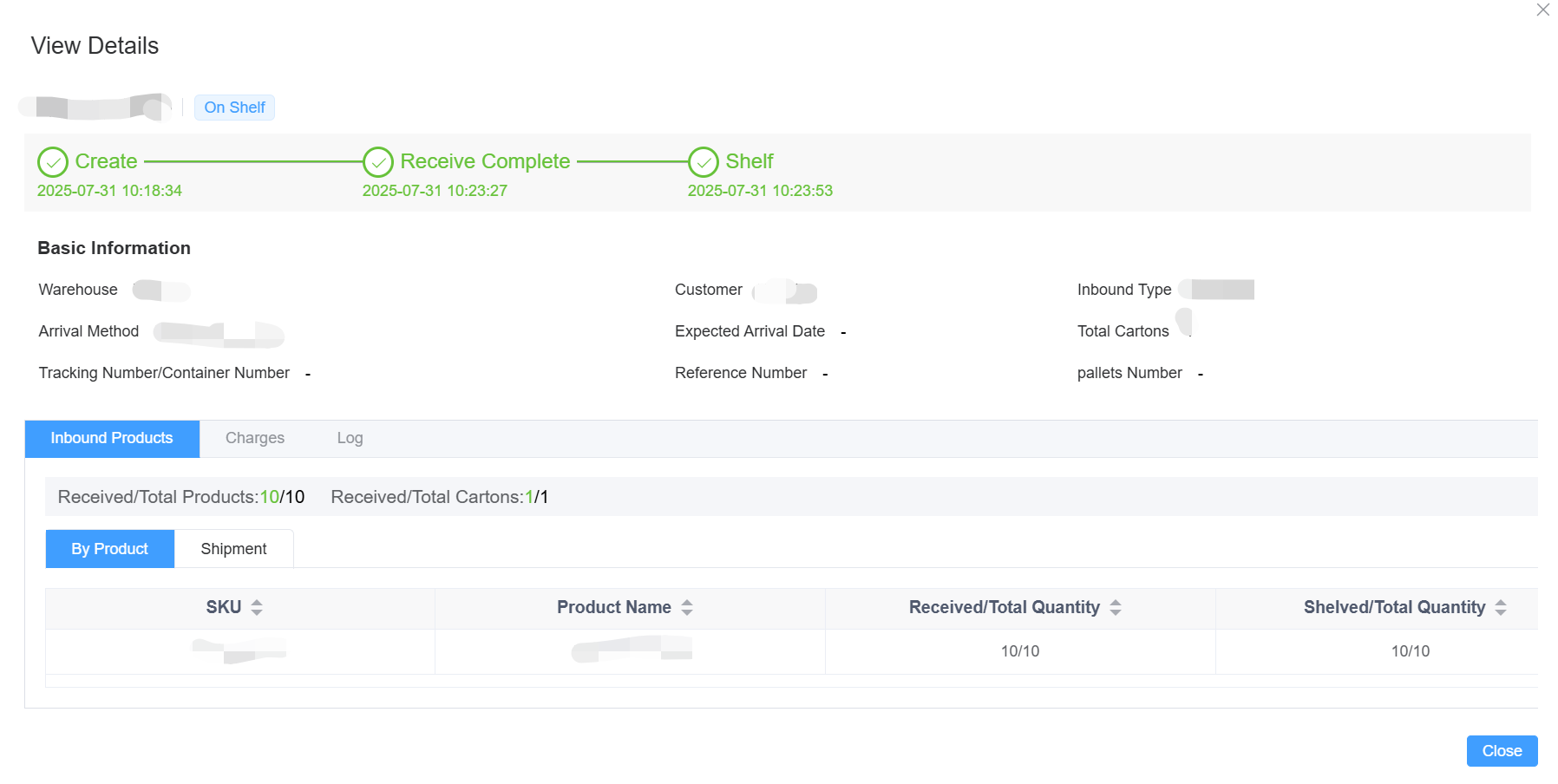
Received
-After receiving operations are completed, status updated to "Received".
- Can view details.

Shelved
- After shelving operations are completed, status updated to "Shelved".
- If shelved in batches, all must be completed.
Cancelled
- After user cancellation, status updated to "Cancelled", cannot be restored.
Consignment Inbound, Return Inbound
Process similar to transit inbound, supporting approval, rejection, receiving, shelving, and other operations.
Outbound Transfer
- Support status flow such as approval, outbound, signing for, and cancellation.
- The shipping warehouse must be consistent with the inventory warehouse.
- The process is consistent with dropshipping and outbound.
Proxy delivery and outbound
All orders
- List of dropshipping and outbound orders in usage status
- Support viewing logistics information status flow
Pending review
-Add pending outbound order for review 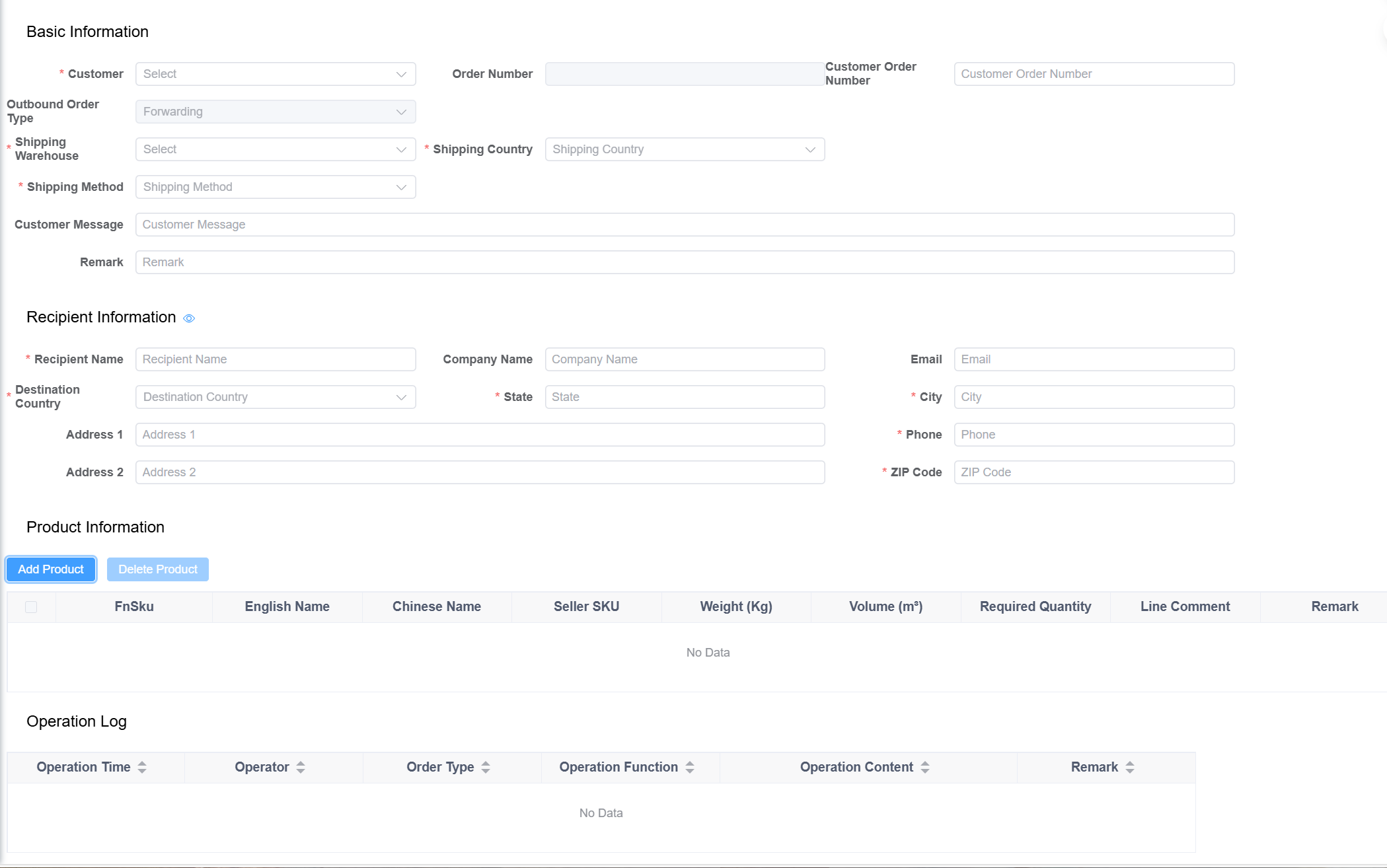
Pending processing
- Status after management approval
To be picked goods
- Status after wave picking operation
To be packaged
- Status after picking operation
To be released from the warehouse
- Status after packaging completion operation
To be signed for
- Confirm the status after the outbound operation
Signed for
- Status after signing operation
Out of stock
- Status when inventory is insufficient
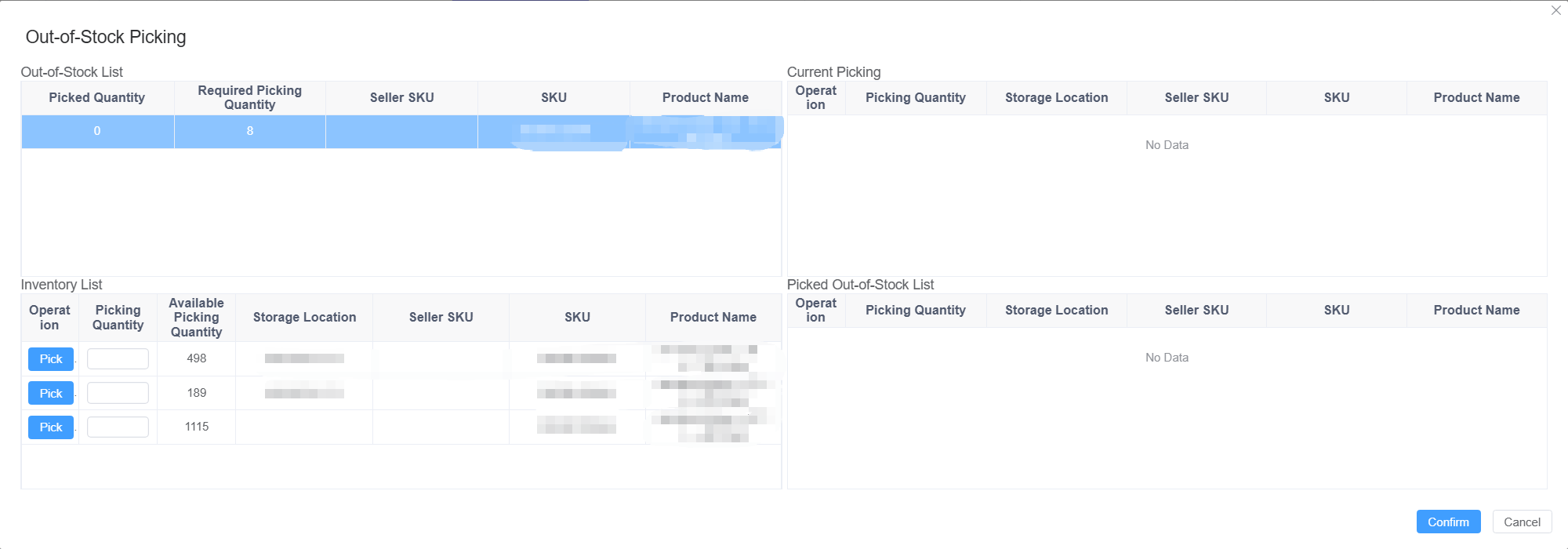
- Administrators can set stockouts and perform "stockout picking operations" after inventory replenishment.
Cancelled
- Status after canceling operation
Inbound Receiving
Arrival Notification (Management)
- Display pending inbound, receiving, and received orders.
Receiving Operations
- Confirm shipment information, support uploading images.
- Actual received quantity is divided into good and defective products, automatically calculated by the system.
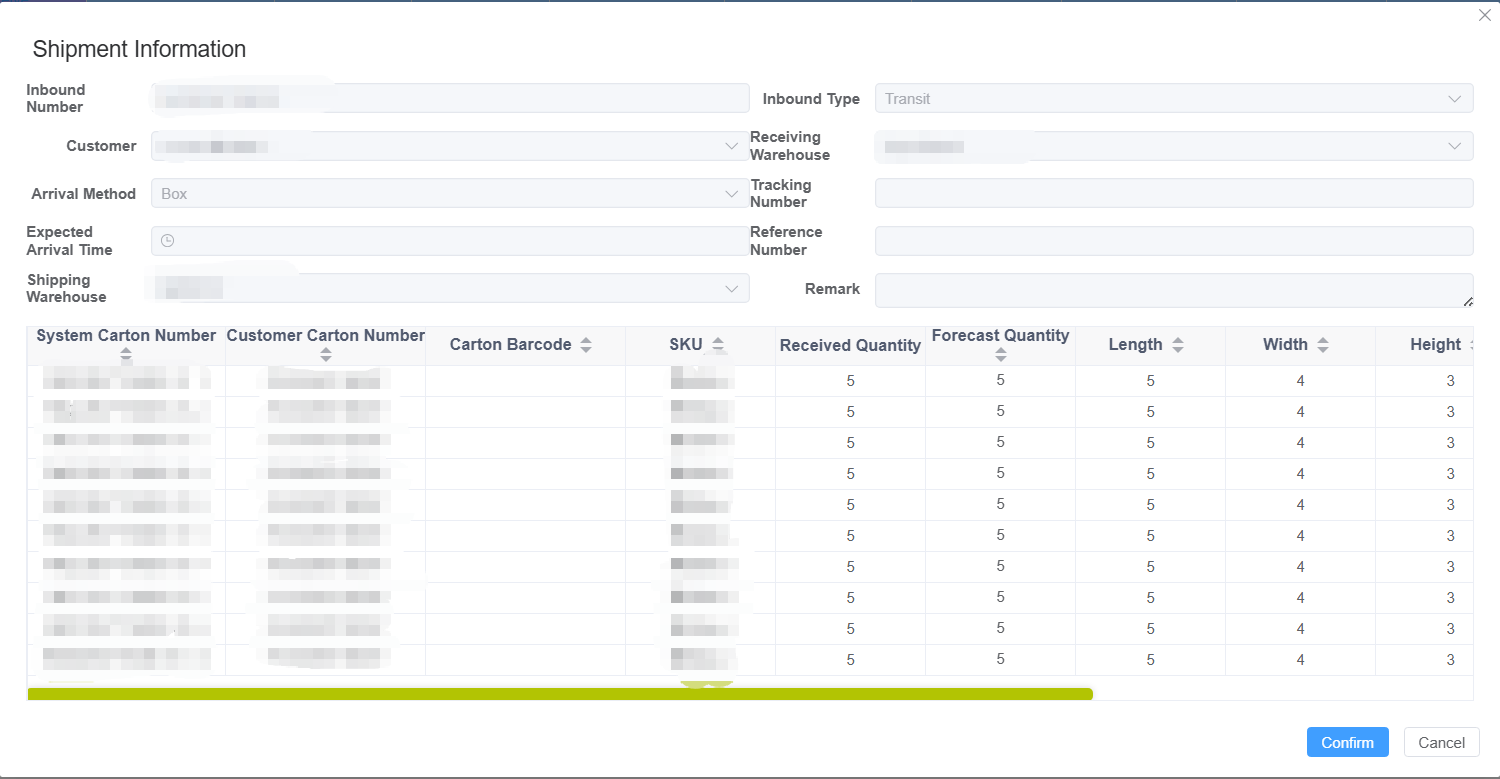
Force Completion
- In special circumstances, force completion is possible. Status changes to "Received", no shelving order generated.
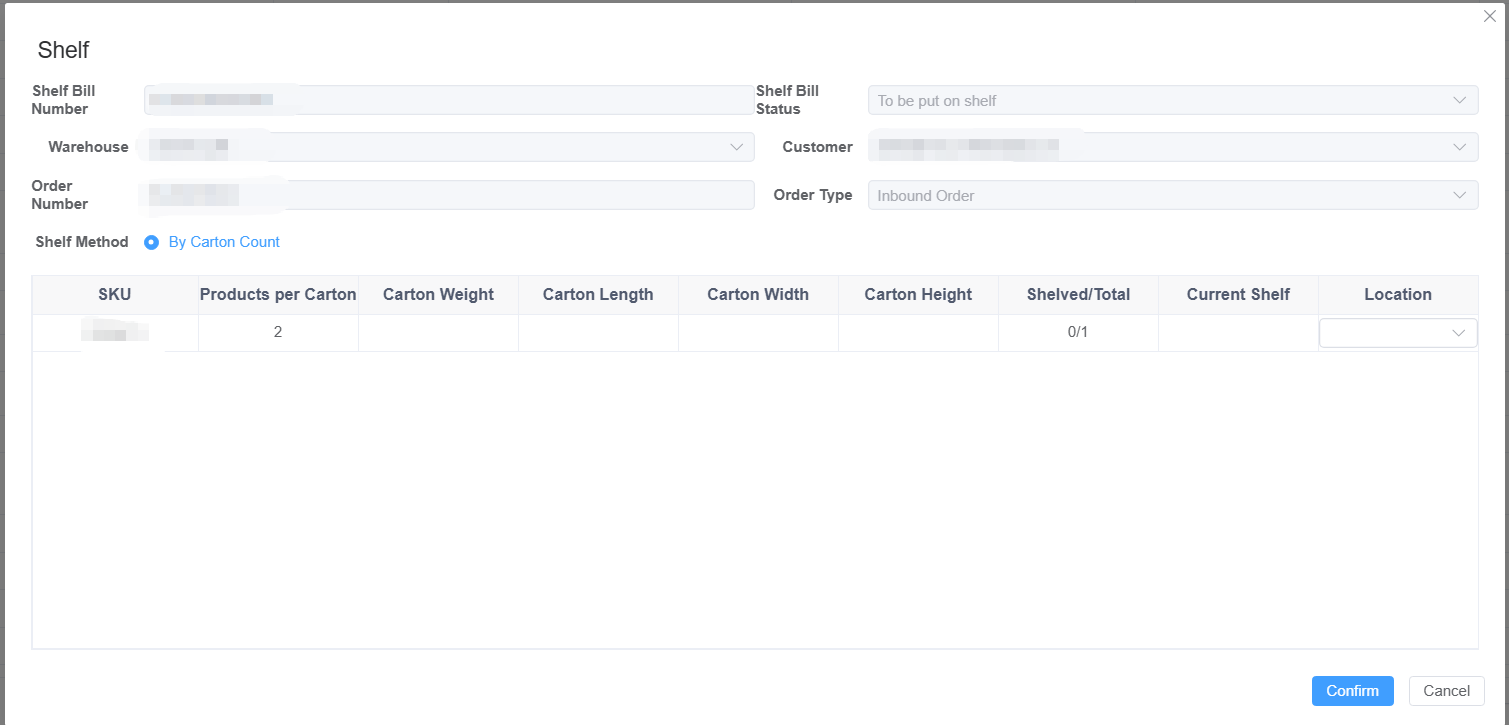
Shelving Orders
- Support exporting and printing labels.
- Each receiving generates one pending shelving order.
Outbound Shipping
Picking Orders
- Support pending picking, picking in progress, and picked status.
- Support pending picking, picking in progress, and picked status.。
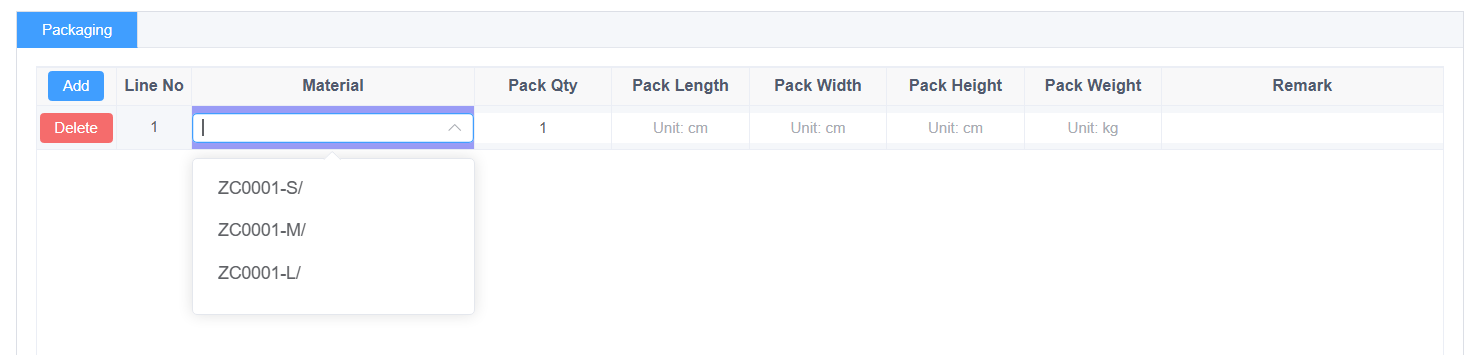
Shipping Orders
- After packing is completed, status is "Packed".
- After outbound confirmation, status is "Shipped".
Inventory Management
Product Inventory
- Inventory automatically increases after goods receipt.
Return Inventory
- Return inbound orders increase return inventory.
Transit Inventory
- Transit inbound orders increase transit inventory.
Inventory Logs
- Record all inventory changes including inbound, outbound, and locking.
Inventory Locking
- Lock inventory during wave picking. After packing and outbound, status updates to "Completed".
Final-leg quotation (management)
Price Inquiry
- Fill in waybill conditions, system calculates estimated price.

Express Pricing
- Support copying and batch activation.
- Can set weight limits and billing formulas.
Truckload Pricing
- Support standard pricing and API pricing.
- API pricing requires filling in the integration channel name.
Zoning Schemes
- Support importing zoning address tables for automatic price matching.
Additional Fees & Markup Rules
- Can set fuel surcharges, remote area fees, etc.
- Support advanced formula editing.
End-of-line finance (management)
Receivable Charges
- System automatically generates warehouse rent and other fees.
- Support confirmation, reversal, and bill generation.
Receivable Bills
- Status flow: Pending Confirmation → Confirmed → Billed → Reconciliation Confirmed → Written Off.
Receivable Payment Vouchers
- Support write-off operations, update payment status.
Warehouse Rent (Management)
- Daily automatic generation of warehouse rent fees.
Store Management
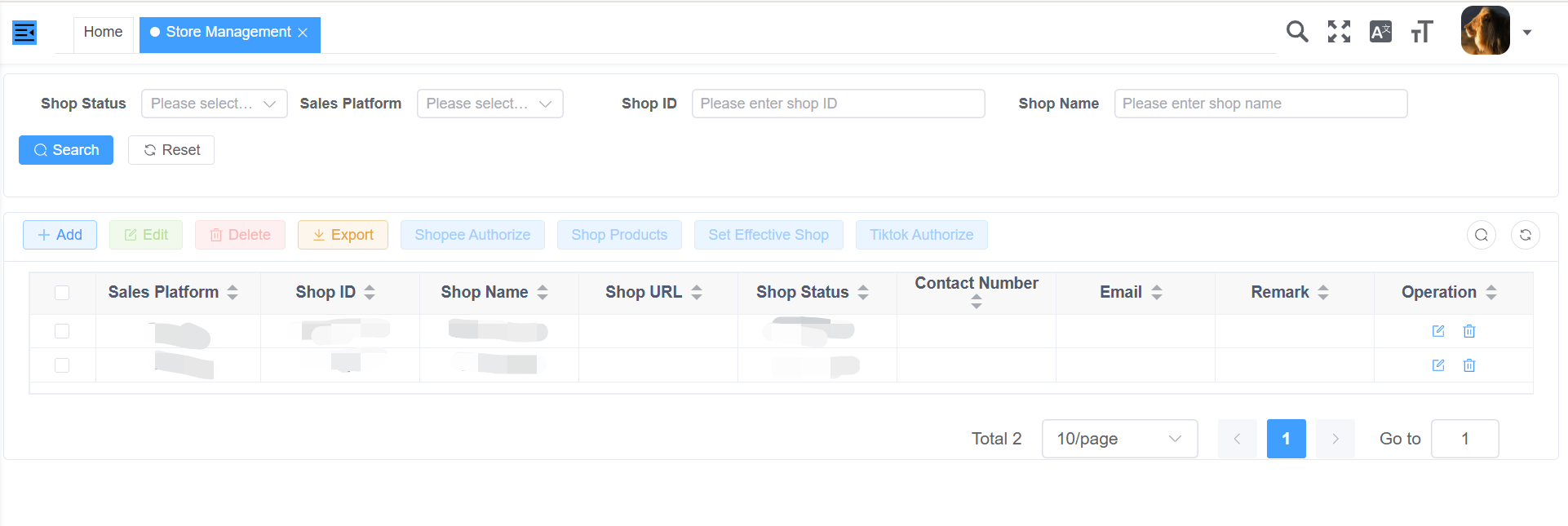
- Add, modify, and delete sales platform store information.
- Support synchronizing product and order data.